
How to exclude all mobile apps from Google Ads and save a ton of money.
First published 16 March 2023. Restored 1 November 2026; the numbers and screens are from then.
Go through your visual campaigns, Google Display (remarketing), YouTube, or even Performance Max, and you may find you are wasting ad spend on mobile apps. If you already know this is happening on your account, skip ahead to the exclusion steps further down. If you are not sure yet, read on: first where the leak shows up, then how to close it.
Where do you see which apps your ads ran in?
Google Display (remarketing) and YouTube:
- Go to the campaign level
- In the left-hand menu click: Content → Where ads showed & Placement
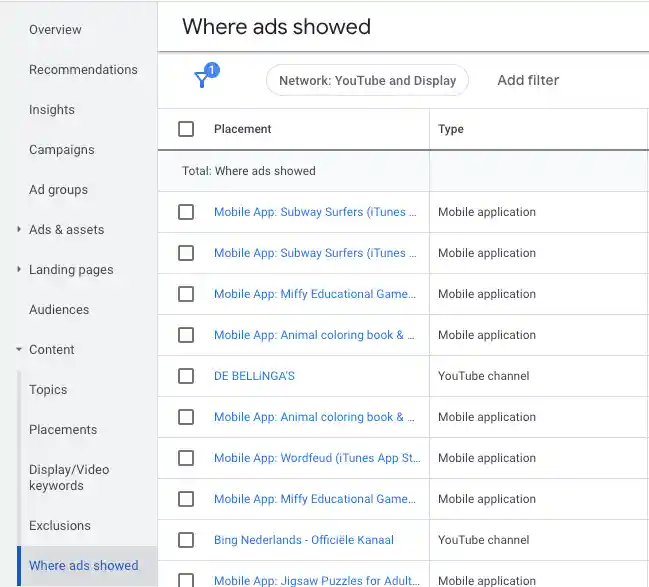
Performance Max:
- Go to the campaign level
- In the top right corner, next to your account ID, click the predefined reports icon
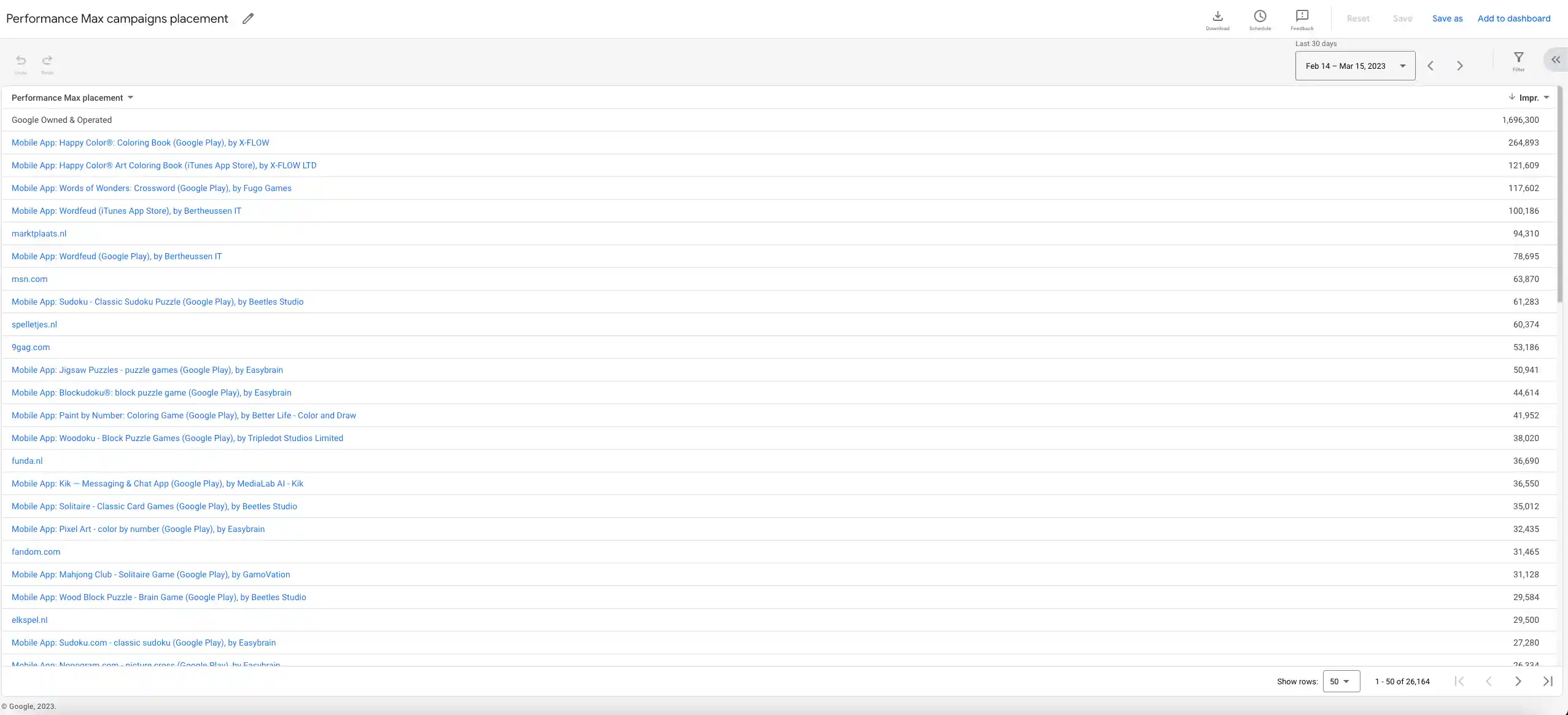
- Choose: Predefined reports (others) → Others → Performance Max Campaigns Placement
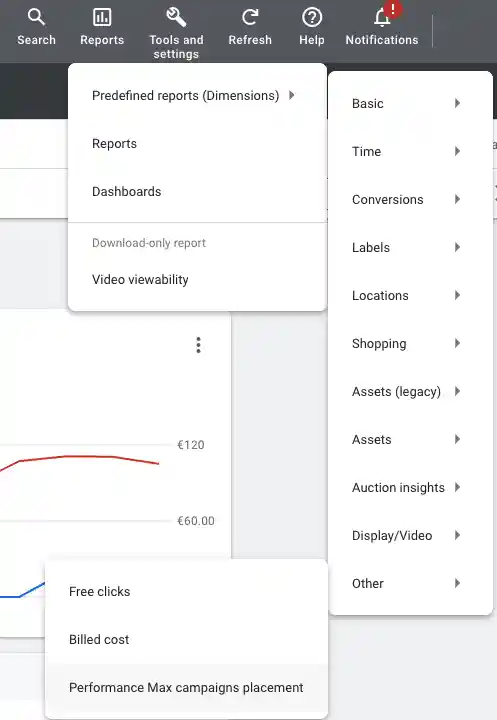
This report does not show you the actual spend, only the number of impressions.
When is it worth excluding mobile apps, and why?
Unless your company offers a mobile app itself, game or otherwise, or has an unlimited budget and does not mind the waste, there is no value in advertising inside mobile apps.
Perhaps you have downloaded and used an app with ads in it yourself at some point. Ask yourself how often you clicked one of those ads on purpose.
Some will say: what about remarketing, staying top of mind with a prospect who has not decided yet? Our answer to that: don’t be annoying. “But bad publicity is still publicity.” No. You are not a rock band, and this is not the eighties or nineties. On behalf of your audience: please stop.
How do you exclude all apps from Display, YouTube and Performance Max?
Option 1: exclude placements at the account level
Excluding at the account level has the advantage that you set it up once and don’t have to worry about it anymore. It is also the only way to exclude apps from Performance Max campaigns.
One catch. If you run a Performance Max campaign and have never run a Display campaign, you may not see the Content tab. To get it to show, create a dummy Display campaign and pause it.
The steps:
- Make sure you are at the account level: click “Overview” in the left-hand panel
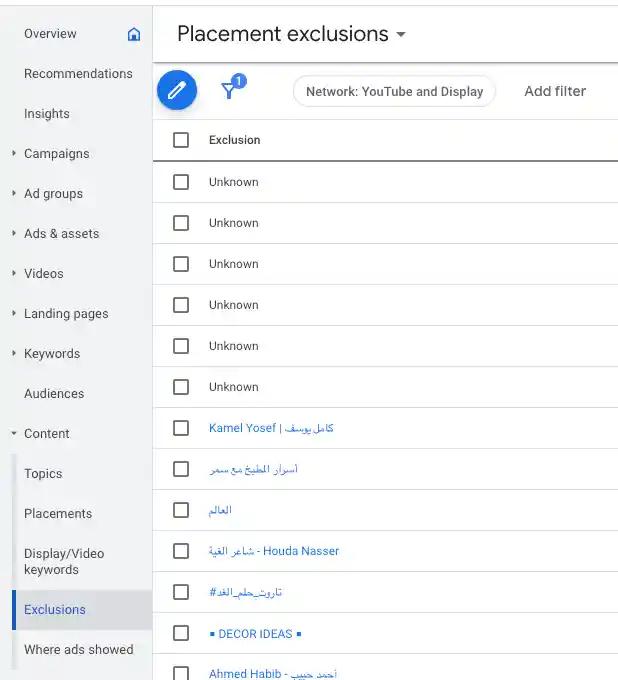
- Go to Content → Exclusions
- At the top of that screen there is a drop-down; set it to “Placement exclusions”
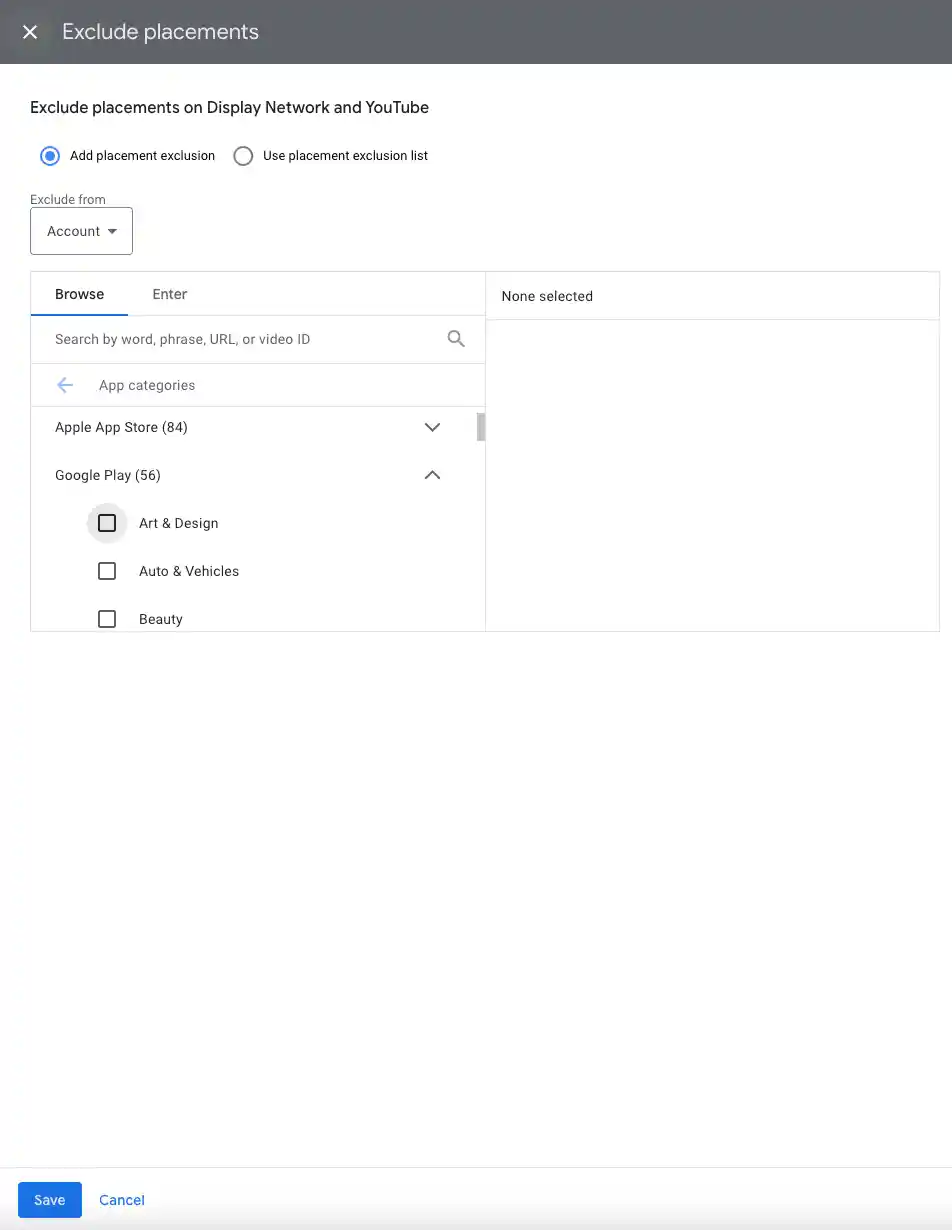
- Click the pencil icon and choose “App categories”
- Here you can select all categories from all app platforms
- Manually tick all of those categories to exclude them
- Hit save
Budget about half an hour for the whole thing.
Option 2: exclude placements at the campaign or ad group level
If, for the reasons at the top of this article, you would rather exclude more granularly, follow the same steps as above, but at the campaign or ad group level instead of the account level.
What else is worth a look while you are in there?
That’s it. No more wasted ad spend on mobile app advertising.
Take a look at the website placements too and see what is going on there. There may be sites you do or do not want to be visible on, based on the relevance or the performance of the ads.
Do these steps still work today?
The screens and menu paths above are from March 2023. Google has changed the Google Ads interface since, and the placement exclusion routes described here may look different today or may no longer exist. We left the original steps as they were written; check them against the current interface before you follow them.
Want to know where your Display and Performance Max budget actually ends up? Checking is free.